To view a Chrome extension's source code, open its folder in Chrome's profile if the extension is installed. To read it without installing, download the .crx package and unzip it, use the CRX Viewer extension, or open the extension in AppView and switch to its Source Code tab, which shows every file, formats minified code and searches all files at once.
All of these work because an extension is not compiled. It ships as JavaScript, HTML, CSS and JSON, plus images and translations, and Chrome runs those files as they are. What you see is exactly what runs in the browser, often minified but never hidden.
What are the ways to view an extension's code?
There are four common ways to get at an extension's files. They differ in whether you have to install the extension, and in what you can do with the code once you have it:
| Method | Install the extension? | Extra software | Search across all files |
|---|---|---|---|
| Chrome's profile folder | Yes | A code editor | In your editor |
| Download the .crx and unzip | No | A downloader and an unzip tool | In your editor |
| CRX Viewer extension | No | The CRX Viewer extension | — |
| AppView Source Code tab | No | None, it runs in the page | Yes, with regex and a file filter |
The first two give you files on disk, which suits a long review in your own editor. The last two show the code in the browser, which is quicker when you want a look before you decide anything.
Where does Chrome keep an installed extension's files?
Chrome unpacks every installed extension into the Extensions folder of your Chrome profile, in a folder named after the extension's ID, with one subfolder per version:
| System | Extensions folder of the default profile |
|---|---|
| Windows | %LOCALAPPDATA%\Google\Chrome\User Data\Default\Extensions |
| macOS | ~/Library/Application Support/Google/Chrome/Default/Extensions |
| Linux | ~/.config/google-chrome/Default/Extensions |
If you use more than one Chrome profile, the folder is not Default but Profile 1, Profile 2 and so on. Open chrome://version and look at Profile Path to see which one you are in.
To match a folder to an extension, open chrome://extensions, turn on Developer mode and read the ID on the extension's card. The ID is 32 letters from a to p; see how to find a Chrome extension by its ID for where else it turns up.
Developer mode also adds Inspect views to each card. It opens DevTools on the extension's service worker or popup, and the Sources panel lists the files that view has loaded. That is handy for watching code run, but it shows only what one view uses, not the whole package.
How do you see an extension's code without installing it?
Installing an extension just to read it gives it the very permissions you may be trying to judge. Three ways avoid that:
- Download the .crx and unzip it. A .crx is a ZIP archive with a signature header in front. The Chrome Web Store has no download button, so you need a downloader tool or script; after that, most unzip tools open the file, some after you rename it to
.zip. - Use the CRX Viewer extension. The open-source Chrome extension source viewer adds a button to store pages that opens the package in a viewer or saves it as a ZIP. You install one extension once, instead of each one you want to read.
- Open the extension in AppView. Nothing to install: the files load in the page.
- Find the extension. Open Find in AppView and paste the extension's name, its 32-letter ID or its Chrome Web Store link.
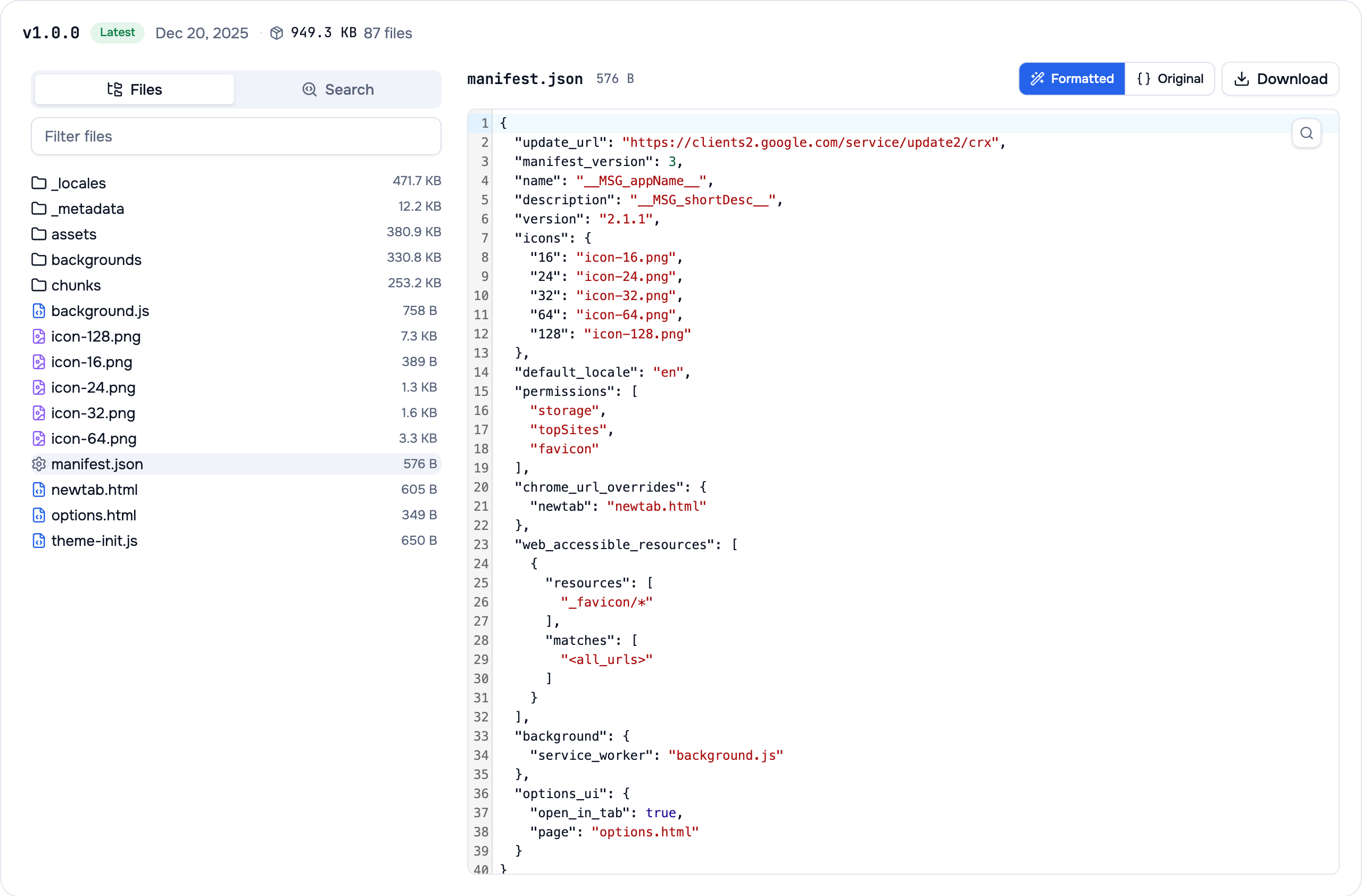
- Open the Source Code tab. On the extension's page, switch to the Source Code tab. The current version's files load in your browser; nothing is installed.
- Browse, format and search. Pick a file in the tree, switch minified files between Formatted and Original, and use Search to look through every file at once.
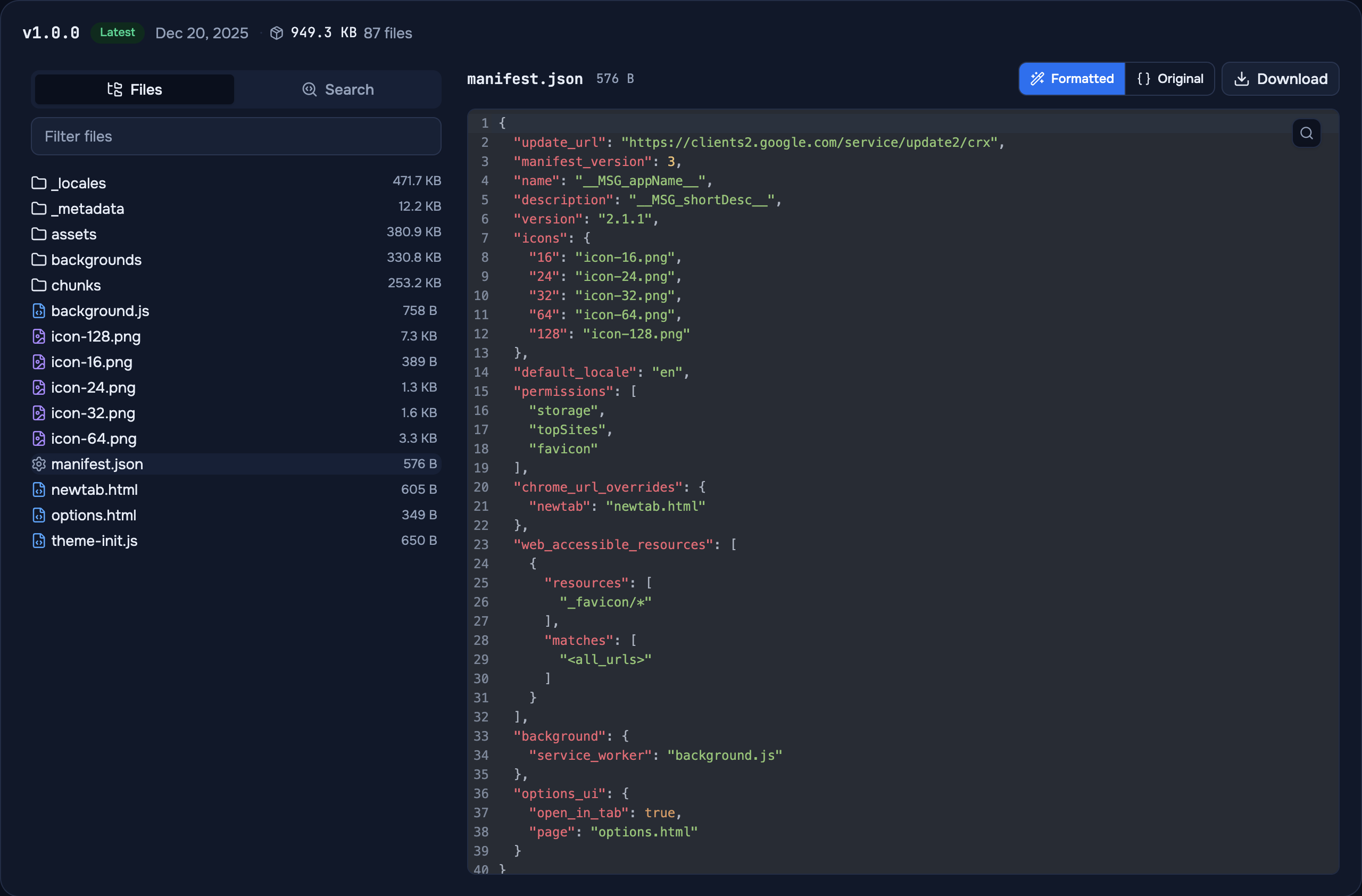
For an example, open Clock Tab's source code. The current version's code is free with an AppView account. The file tree shows the archive size and the number of files, and every file, line and search has its own link you can send to a colleague.
How do you search across all of an extension's files?
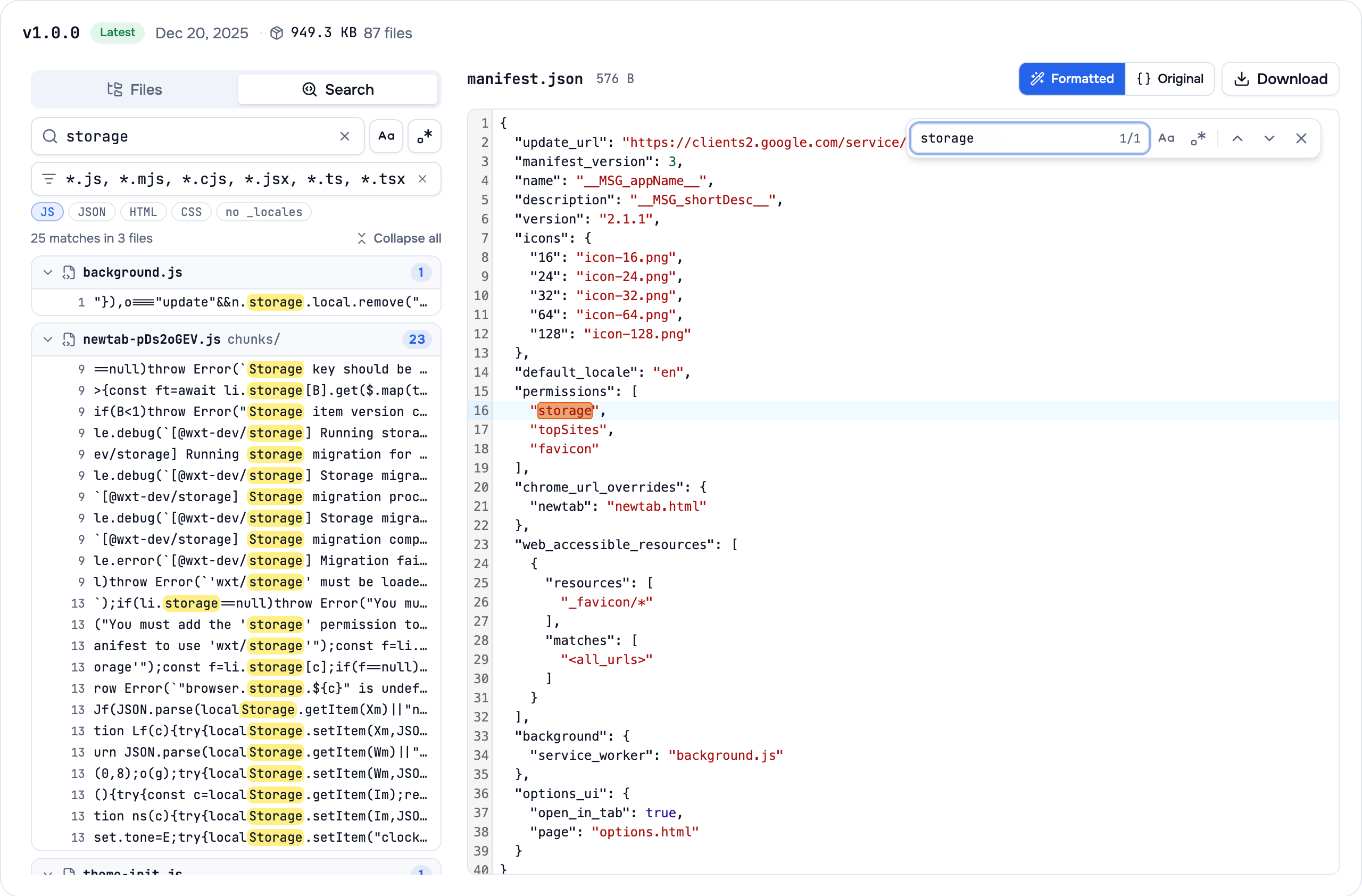
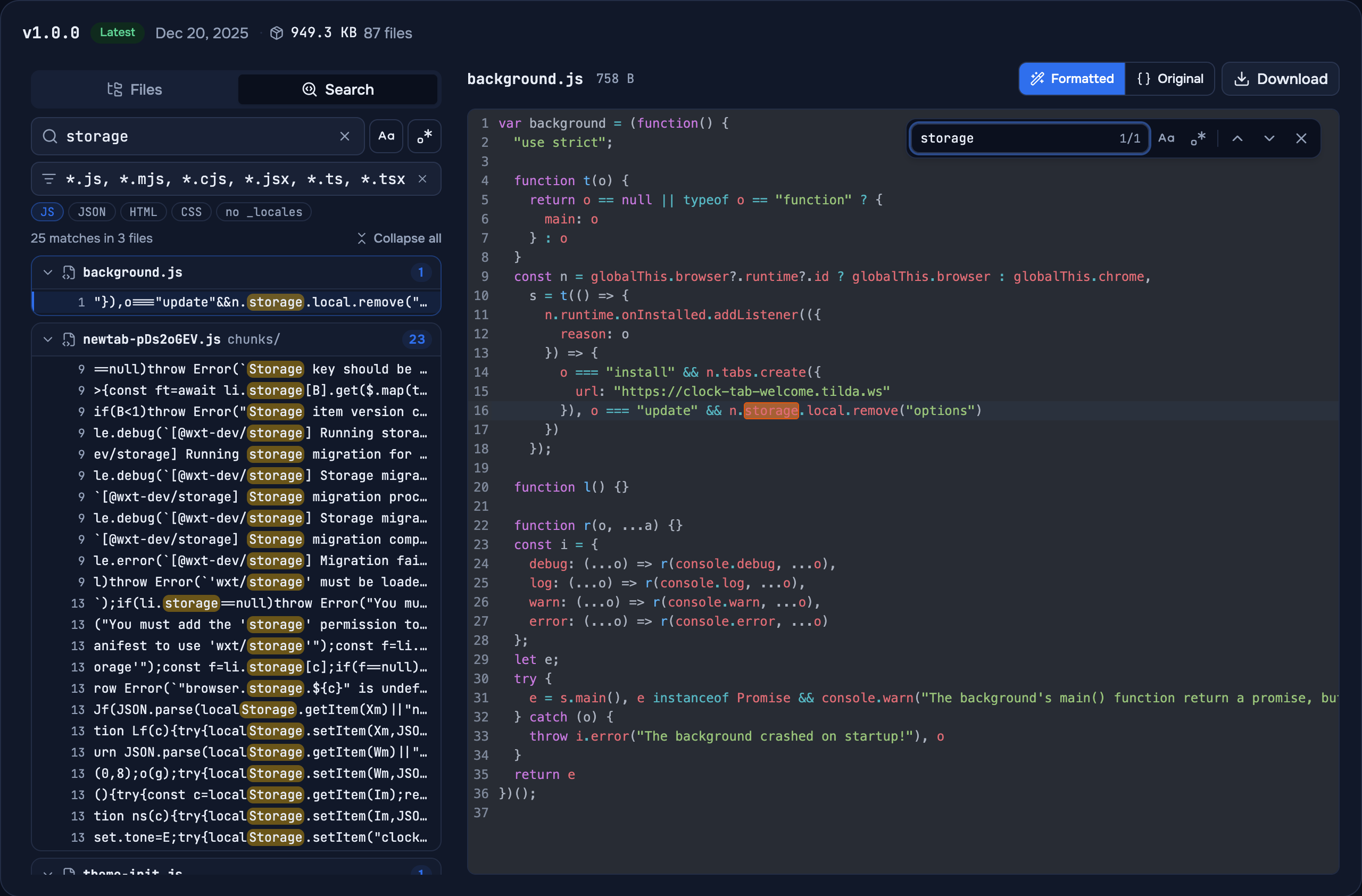
A real extension has dozens of files, and the interesting line is rarely in the one you open first. In AppView, the Search tab looks through every text file of the extension at once: plain text or a regular expression, with Match case, from two characters up. Results are grouped by file, and a click opens the file at the match.
The file filter narrows the search before it starts. Masks are comma-separated: *.js matches by file name, js/** by folder, a plain word matches any path that contains it, and ! in front excludes. The chips set common filters in one click; no _locales skips the translations, which repeat every UI string in each language.
Images, fonts and source maps are never searched. A search keeps up to 100 matches per file and 1,000 in total; if it stops there, narrow the query or the filter.
How do you read minified code?
Most extensions are built with a bundler, so the main script can be one line of several megabytes with one-letter names. Two tools lay it out again:
- DevTools. In the Sources panel, the
{}button at the bottom of the editor pretty-prints the open file. - AppView. Minified JS, CSS, HTML and JSON up to 8 MB open formatted. Original shows the file exactly as it ships, and Ctrl+F or ⌘F finds text in the file with a counter and previous and next.
Formatting restores the structure, not the original names or comments, so read for what the code calls rather than what its variables are called.
What should you look for in an extension's code?
Start with manifest.json: it lists the permissions, the sites the extension can read (host_permissions and content script matches), and which files run where. Then search the code for the calls that matter for privacy and safety. In AppView, turn on Regular expression and paste these:
| Search for | What a hit means |
|---|---|
fetch\(|XMLHttpRequest|sendBeacon | The extension sends or loads data over the network. Check which hosts it talks to |
eval\(|new Function | Code built from strings at run time, which reviewers flag because it can hide behaviour |
chrome\.cookies|chrome\.history|chrome\.webRequest | Access to cookies, browsing history or network traffic |
<all_urls> | The extension can read every site you visit (search in manifest.json) |
importScripts|createElement\("script" | Scripts loaded into a page or worker. Check that they come from the package, not from a server |
A hit is a question, not a verdict: a translation tool has to send text somewhere, and an ad blocker has to see every site. What matters is whether the code does what the store listing says, and nothing more.
The code is half of the picture; the other half is who stands behind it. AppView's publisher pages show who maintains an extension and how often they ship. For everything the source code viewer can do, see what is new in it.