Find is the quickest way to an extension's page in AppView. Paste what you have, a name, an ID or a store link, and press Enter.
Where is search in AppView?
In two places, and both use the same rules. The Find page is the main form: open it with CWS → Find Extension in the menu or by clicking the AppView logo, then paste what you have and press Enter. It lists up to 20 matches, most-used first.
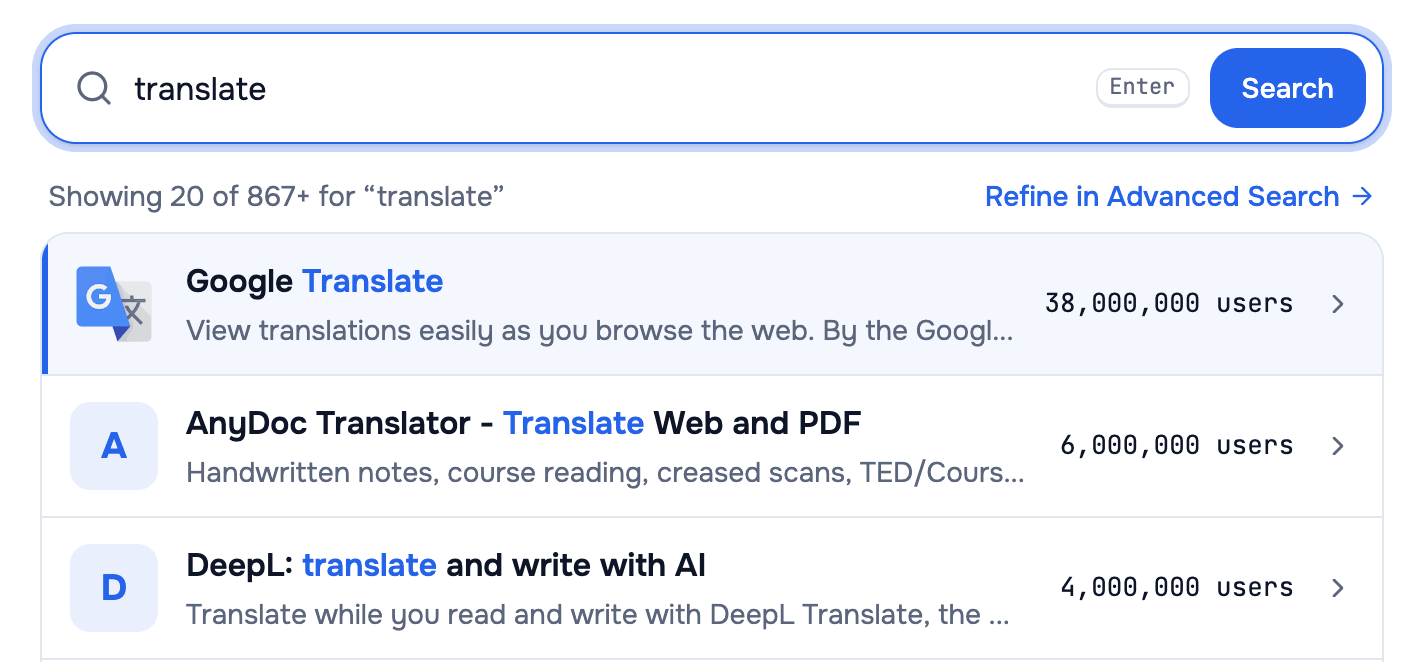
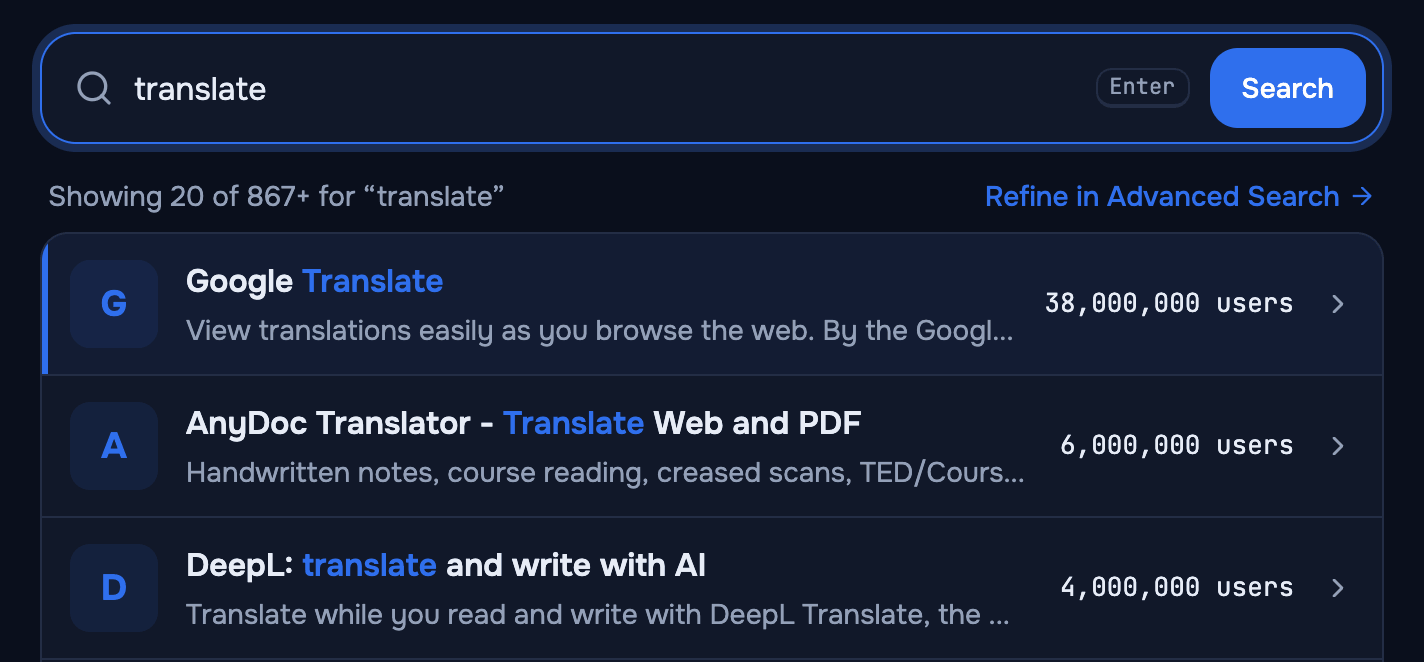
Quick search sits in the header of every page. Press / or ⌘K (Ctrl+K on Windows) to jump into it. Matches appear as you type, up to 8; use the arrow keys and Enter to open one, or the “All results” link at the bottom to see the full list on the Find page.
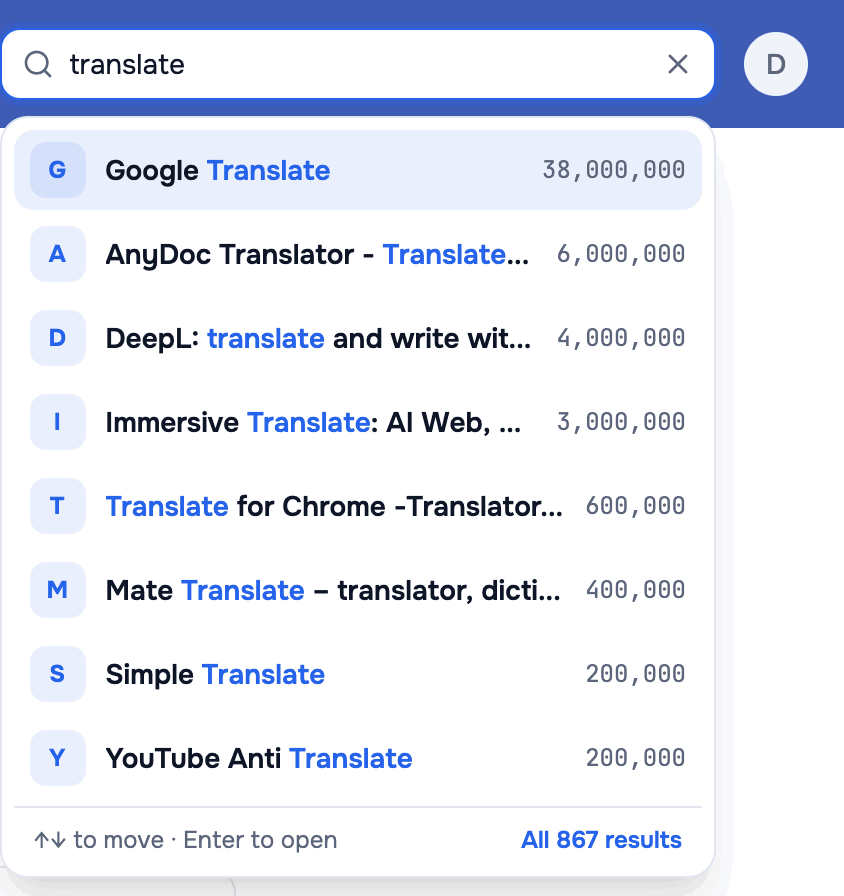
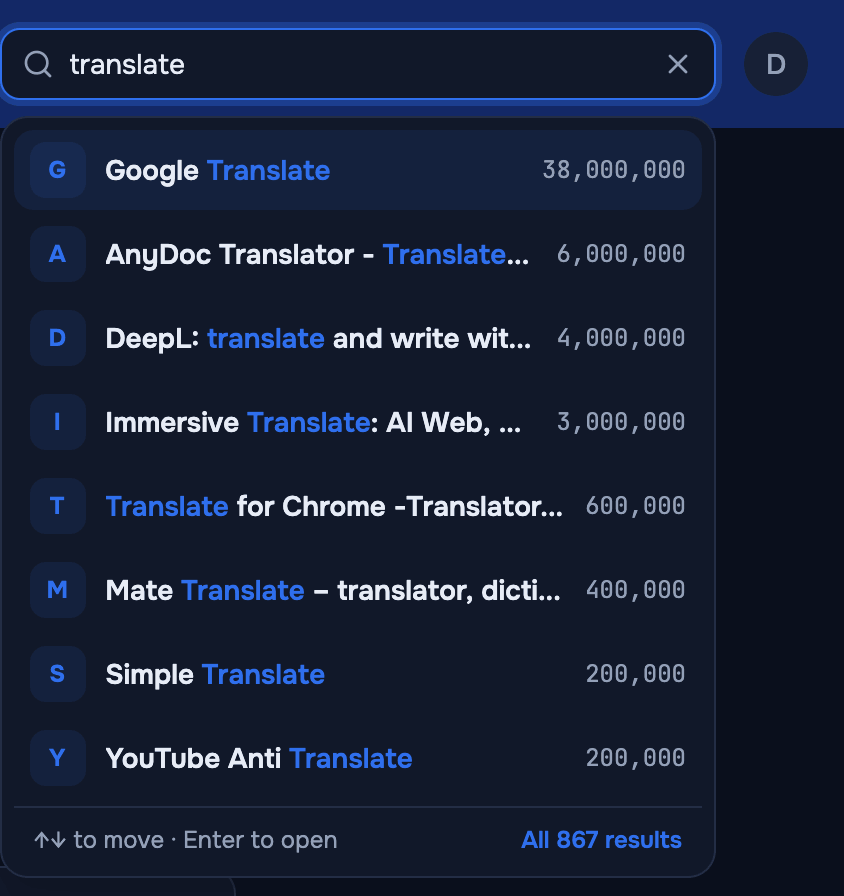
Use quick search to jump to an extension you already know, and the Find page when you want the full list.
What can you paste into Find?
Find reads the text first and decides what it is. Each row below is computed with the same rules as the product:
| You paste | What Find does |
|---|---|
Name or part of ittranslate google | Lists up to 20 extensions with every word in the title, most-used first. An exact title opens directly. |
Extension IDaapbdbd…llcleb | Opens the extension's page straight away. |
Store linkhttps://chromewebstore.google.com/detail/google-translate/aapbdbd…llcleb | Takes the ID from the link and opens the extension's page. |
Old store linkhttps://chrome.google.com/webstore/detail/aapbdbd…llcleb?hl=en | Takes the ID from the link and opens the extension's page. |
Link without https://chromewebstore.google.com/detail/aapbdbd…llcleb | Takes the ID from the link and opens the extension's page. |
One or two letterstr | Type at least 3 characters, or paste an ID or a store link. |
A store link is reduced to the ID inside it, so the link's extension name, a language parameter or a missing https:// make no difference. A name needs at least 3 characters.
How does search by name work?
Each word you type has to appear somewhere in the title, in any order and ignoring case, so “translate google” still finds Google Translate. A word can also sit inside a longer one: “transl” is enough. Put a phrase in quotes to keep its words together.
Find shows up to 20 extensions, most-used first, and says how many more match. To narrow a long list by users, rating or category, use Advanced Search, where title keyword search works a little differently.
When does Find open a page directly?
Find skips the list and opens the extension's page when:
- you paste an exact ID or a store link that AppView knows;
- only one extension matches;
- one title matches your text exactly.
So “uBlock” opens the extension called uBlock, not uBlock Origin. Type the full name to get the one you mean.
What if Find shows nothing?
- Check the spelling, or try a shorter part of the name.
- Check the ID: 32 lowercase letters from a to p. Copying it from the store link avoids typos.
- It may not be in AppView yet. Find doesn't add extensions on request; a new extension appears once AppView picks it up from the store.
- Themes and Chrome apps aren't covered. Find searches extensions only.
To look up an ID you found outside AppView, see how to find a Chrome extension by its ID.